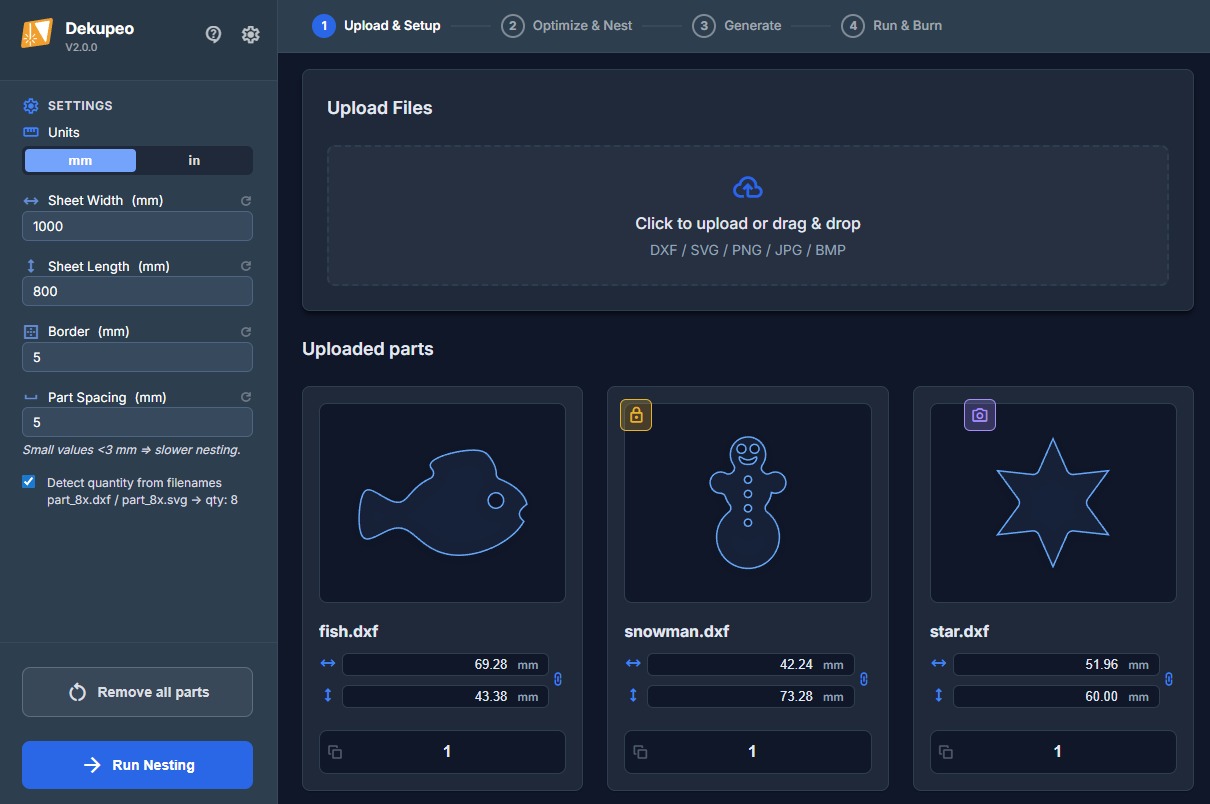
1. Téléchargement et Configuration
Dans un premier temps, vous devez télécharger vos fichiers de conception, définir les quantités de pièces et les paramètres de la feuille. Vous pouvez également attacher des images raster à vos pièces pour la gravure. La gravure vectorielle est également prise en charge – il suffit de définir une couche ENGRAVE dans vos fichiers DXF ou SVG.
- 3. Générer – Si vous souhaitez traiter uniquement un seul fichier (SVG, DXF ou bitmap)
- 4. Lancer et Brûler – Si vous avez déjà un G-code que vous souhaitez exécuter.
Guide étape par étape
- Configurer la taille de la feuille – Entrez les dimensions de votre matériau (largeur × longueur en mm).
Définir l'espacement des pièces – L'espacement est l'écart minimum entre les pièces. Des valeurs faibles < 3 mm peuvent ralentir l'imbrication, car l'algorithme doit placer les pièces avec une grande précision.
Définir la marge – La marge est l'écart minimum entre les pièces et les bords de la feuille.
Vous pouvez également activer/désactiver la détection automatique des quantités à partir des noms de fichiers (appliquée lors du téléchargement).
- Télécharger les fichiers de conception – Cliquez sur la zone de téléchargement ou glissez-déposez vos fichiers. Vous pouvez télécharger des fichiers DXF, SVG ou bitmap.
- Définir les paramètres des pièces – Entrez le nombre de copies dont vous avez besoin pour chaque pièce. Vérifiez l'aperçu de la pièce et ajustez les dimensions si nécessaire. Vous pouvez cliquer sur la pièce pour une vue agrandie.
Appliquer le verrouillage du grain (grain lock) si nécessaire. Une pièce verrouillée ne sera pas pivotée pendant l'imbrication.
Attacher une gravure raster si vous souhaitez graver une image sur la pièce.
Attacher une gravure vectorielle si vous souhaitez graver un motif vectoriel sur la pièce.
Split file (splitscreen) Les fichiers contenant plusieurs pièces doivent être divisés avant d'y attacher une gravure.
Duplicate part (content_copy) si vous souhaitez créer plusieurs copies d'une pièce avec des tailles ou des gravures différentes.
- Lancer l'imbrication – Cliquez sur Lancer l'imbrication pour commencer.
Pour de meilleurs résultats, consultez les guides Comment préparer les fichiers DXF et Comment préparer les fichiers Bitmap.
Formes personnalisées (mode feuille personnalisée)
Par défaut, l'imbrication utilise une feuille rectangulaire. Si votre matériau a un contour irrégulier (chute), vous pouvez activer le mode feuille personnalisée et utiliser un contour vectoriel comme limite d'imbrication.
- Activez le mode feuille personnalisée sur la page Téléchargement et Configuration.
- Marquez une forme téléchargée comme feuille (crop_square).
- Lancez l'imbrication pour placer les pièces à l'intérieur de la limite personnalisée au lieu d'un rectangle.
Note : Le mode forme personnalisée est disponible à partir de l'offre Hobby.
Autodétection de forme (photo vers limite de feuille)
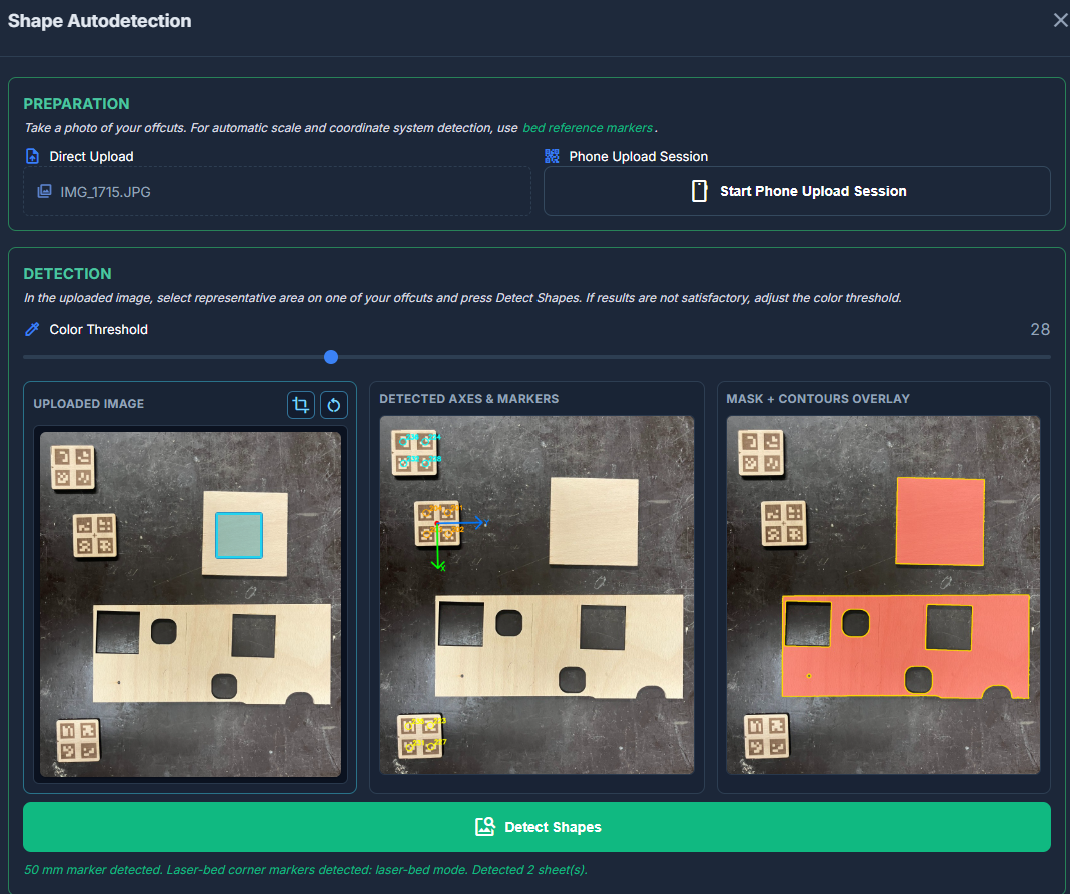
L'autodétection de forme vous aide à convertir une photo de chutes en limite vectorielle pour l'imbrication avec feuille personnalisée.
- Cliquez sur le bouton Autodétection de forme.
- Chargez une photo de la feuille depuis votre ordinateur ou une session d'envoi mobile.
Utilisez un fond contrasté pour une détection fiable et des marqueurs pour une mise à l'échelle automatique. - À la souris, sélectionnez un rectangle représentatif sur la chute.
- Cliquez sur le bouton de détection des formes. Le traitement peut prendre quelques instants.
- Vérifiez les aperçus de contours générés ; recommencez si nécessaire avec une meilleure image ou un seuil ajusté.
- Ajouter comme feuille pour insérer la limite détectée dans la liste des pièces et l'utiliser comme feuille d'imbrication personnalisée.
Les feuilles détectées avec au moins deux marqueurs d'angle sont liées au système de coordonnées de la machine et marquées avec l'icône my_location.
Note : L'autodétection de forme est disponible à partir de l'offre Workshop.
Attacher une Gravure Raster
Vous pouvez attacher une image raster (PNG, JPG, BMP) à n'importe quelle pièce vectorielle téléchargée. Cette image sera gravée sur la surface de la pièce pendant le processus de découpe.
Pour ouvrir les paramètres de gravure raster, cliquez sur le bouton sur une pièce spécifique. Le bouton est visible lorsque vous survolez la pièce.
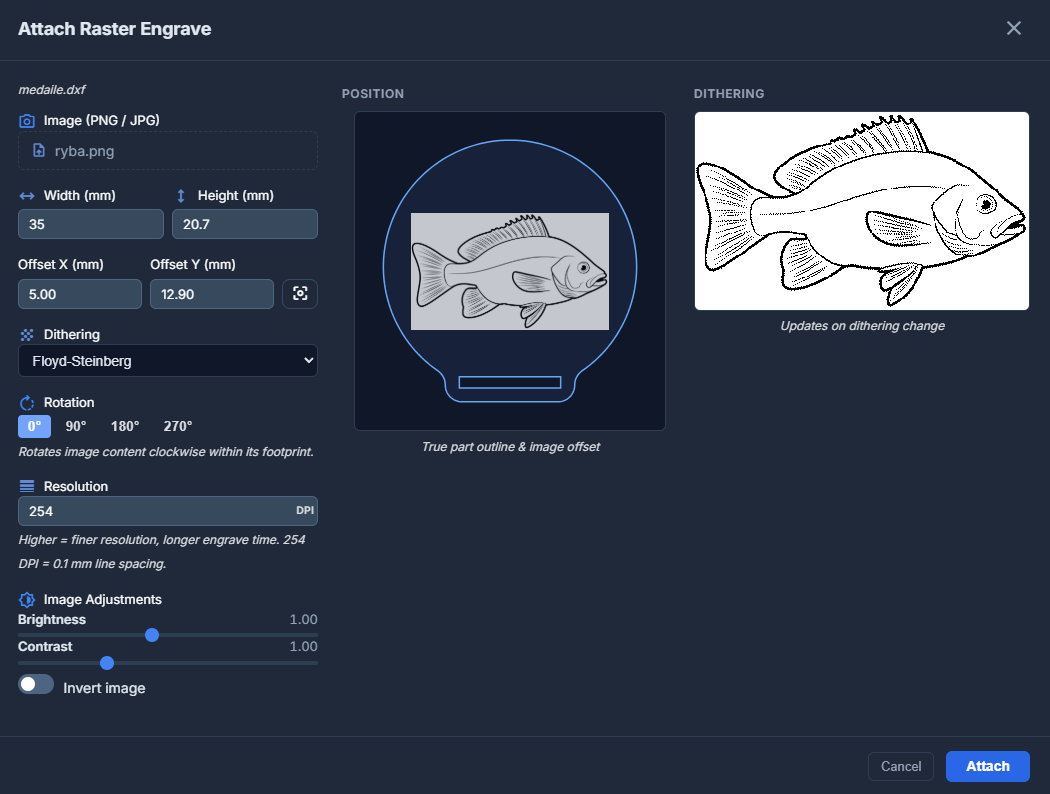
Paramètres disponibles dans la fenêtre :
- Largeur et Hauteur – Mettez l'image à l'échelle selon des dimensions spécifiques en millimètres.
- Décalage X & Y – Positionnez l'image par rapport à l'origine de la pièce. Vous pouvez utiliser le bouton Centrer pour centrer automatiquement l'image sur la pièce.
- Dithering (tramage) – Choisissez comment convertir l' image en points pour la gravure :
- Floyd-Steinberg – Tramage par diffusion de haute qualité pour des dégradés lisses.
- Bayer (ordonné) – Tramage par motif géométrique.
- Aucun (seuil) – Noir et blanc pur basé sur une valeur de seuil.
- Rotation – Faites pivoter le contenu de l'image (0°, 90°, 180° ou 270°).
- Résolution (DPI) – Ajustez le niveau de détail. 254 DPI correspond à un espacement de ligne de 0,1 mm. Des valeurs plus élevées donnent une meilleure qualité mais des temps de gravure plus longs.
- Ajustements d'image – Peaufinez la luminosité et le contraste. Vous pouvez également Inverser l'image (utile pour graver des objets sur des matériaux sombres).
La fenêtre fournit un Aperçu de la position en temps réel montrant le contour réel de la pièce et le décalage de l'image, ainsi qu'un Aperçu du tramage pour voir comment l'image sera réellement traitée.
Attacher une Gravure Vectorielle
En plus des images raster, vous pouvez également attacher des fichiers à graver sur vos pièces en mode vectoriel. C'est idéal pour les logos, les textes ou les marquages techniques nécessitant des lignes vectorielles nettes.
Vous pouvez attacher des fichiers vectoriels au format SVG ou DXF, ou des images bitmap qui seront automatiquement converties en tracés vectoriels.
Pour ouvrir les réglages de gravure vectorielle, cliquez sur le bouton sur une pièce spécifique. Le bouton est visible lorsque vous survolez la pièce.
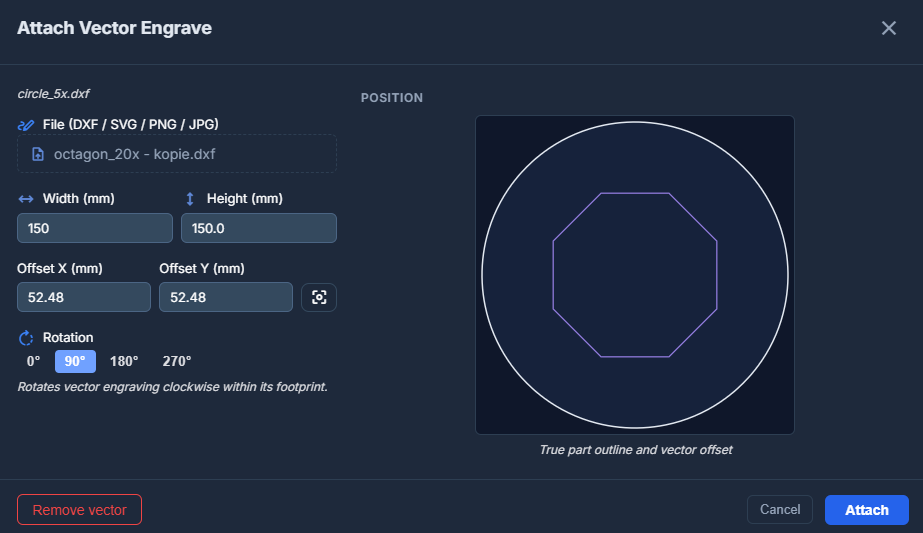
Paramètres disponibles dans la fenêtre :
- Largeur et Hauteur – Mettez le design vectoriel à l'échelle selon des dimensions spécifiques.
- Décalage X & Y – Positionnez le vecteur par rapport à l'origine de la pièce. Utilisez le bouton Centrer pour un centrage automatique.
- Rotation – Faites pivoter le design vectoriel (0°, 90°, 180° ou 270°).
Comme pour la gravure raster, les tracés de gravure vectorielle sont automatiquement déplacés et pivotés avec la pièce pendant le processus d'imbrication.
Créer un pièce
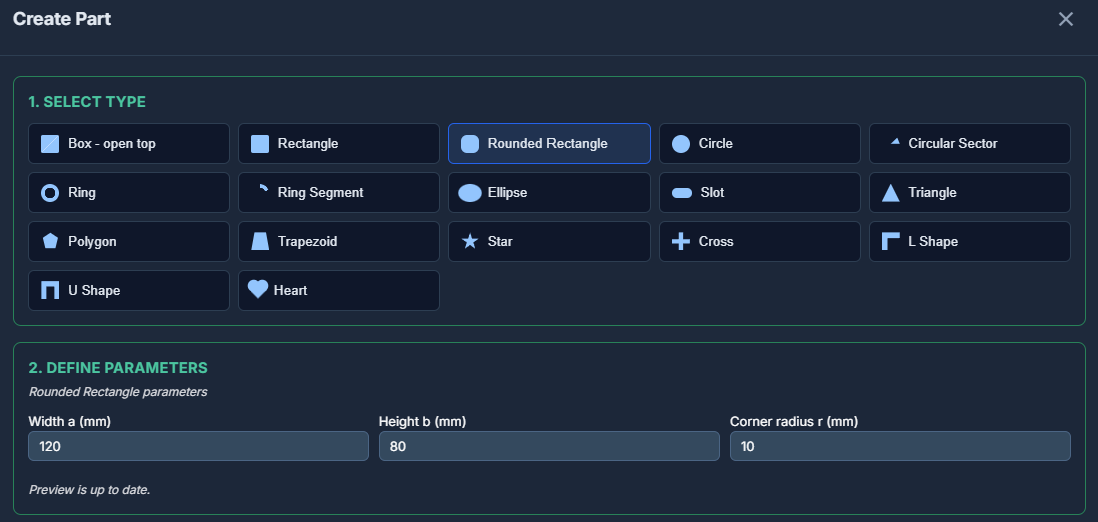
Dekupeo n'est pas un outil de conception vectorielle, mais il permet néanmoins de créer des pièces de base à partir de formes et de dimensions prédéfinies. Pour ce faire, cliquez sur le bouton architecture Create, sélectionnez le type de pièce et définissez les dimensions souhaitées.