Bitmap Nesting
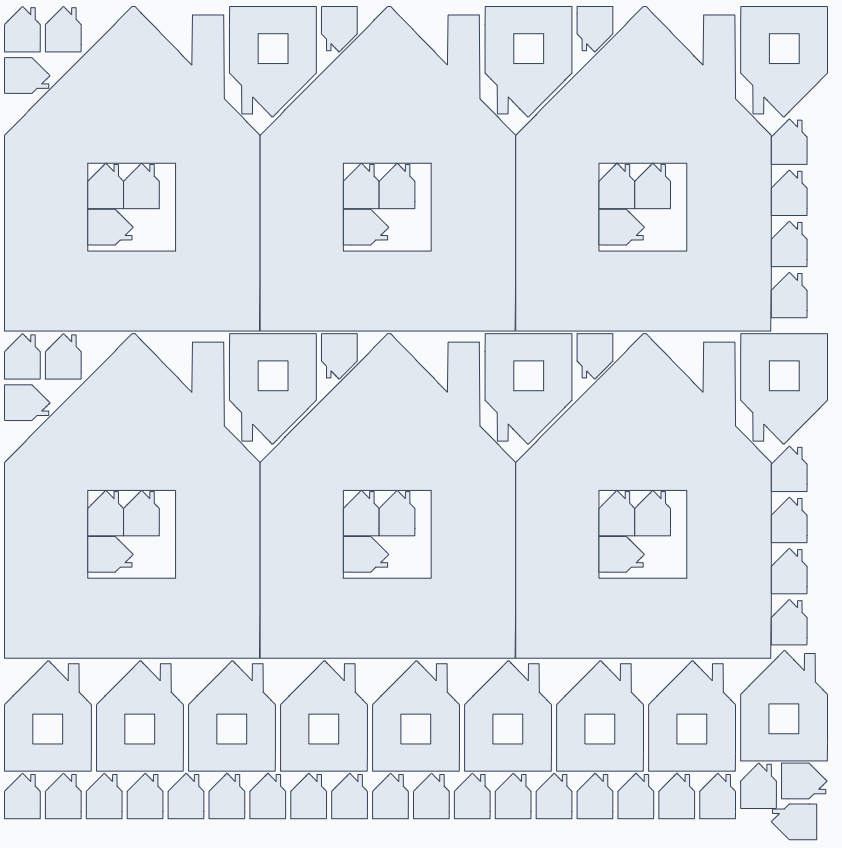
Dekupeo Nest can also nest parts from bitmap files (png, jpg...). This is useful for nesting hand-drawn sketches, scanned paper drawings, or parts from software that does not support DXF export. The nesting process is the same as with DXF files, but there are some additional tips to get the best results.
Bitmap Preparation
The bitmap should be a high contrast, black and white image, where parts are in black and the background is white. The nesting algorithm will extract the contours of the black shapes and treat them as parts to nest. Contours should be closed.
If your image is not black, you can try to import it as is, but the results may vary depending on the contrast and clarity of the shapes. In case the import results are not satisfactory, you can use any image editing software (Photoshop, GIMP, Paint...) to convert your image to a clean black and white version before importing it into Dekupeo Nest.

Contour only
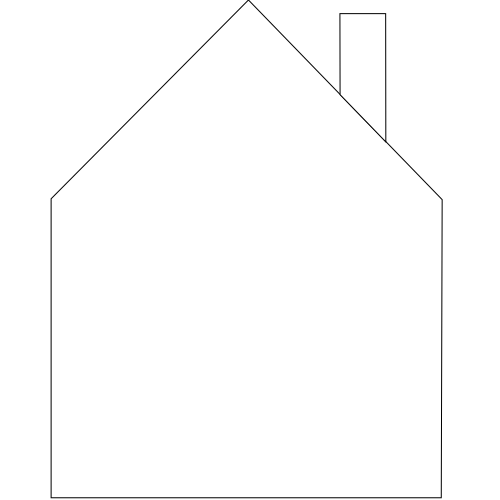
Dekupeo Nest can also work with bitmap files that contain only the contours of parts. In this case, the algorithm will treat the contours as the boundaries of the parts to nest and it will fill the interior automatically.
Holes
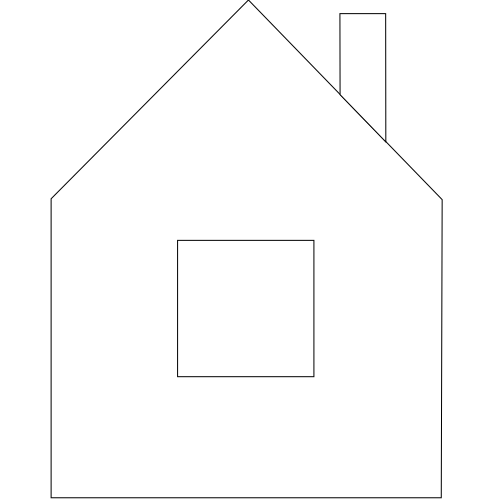
Holes in parts can be represented as white areas inside the black shapes. The algorithm will detect these holes and preserve them in the nesting results. Holes in contour-only bitmaps are not supported - they will be filled.

Scaling
One pixel in the bitmap will be treated as 25.4/96~0.2646 mm in the nesting results. If your bitmap is not to scale, you can adjust the scale factor in the settings before running the nesting algorithm.
You can also use a single part more than once with different scaling factors.