Dekupeo Case Studies
Lightburn vs Dekupeo
Both LightBurn and Dekupeo are capable tools for laser cutting and engraving. They are designed around different workflows, so the best choice depends on how you prefer to work in the shop.
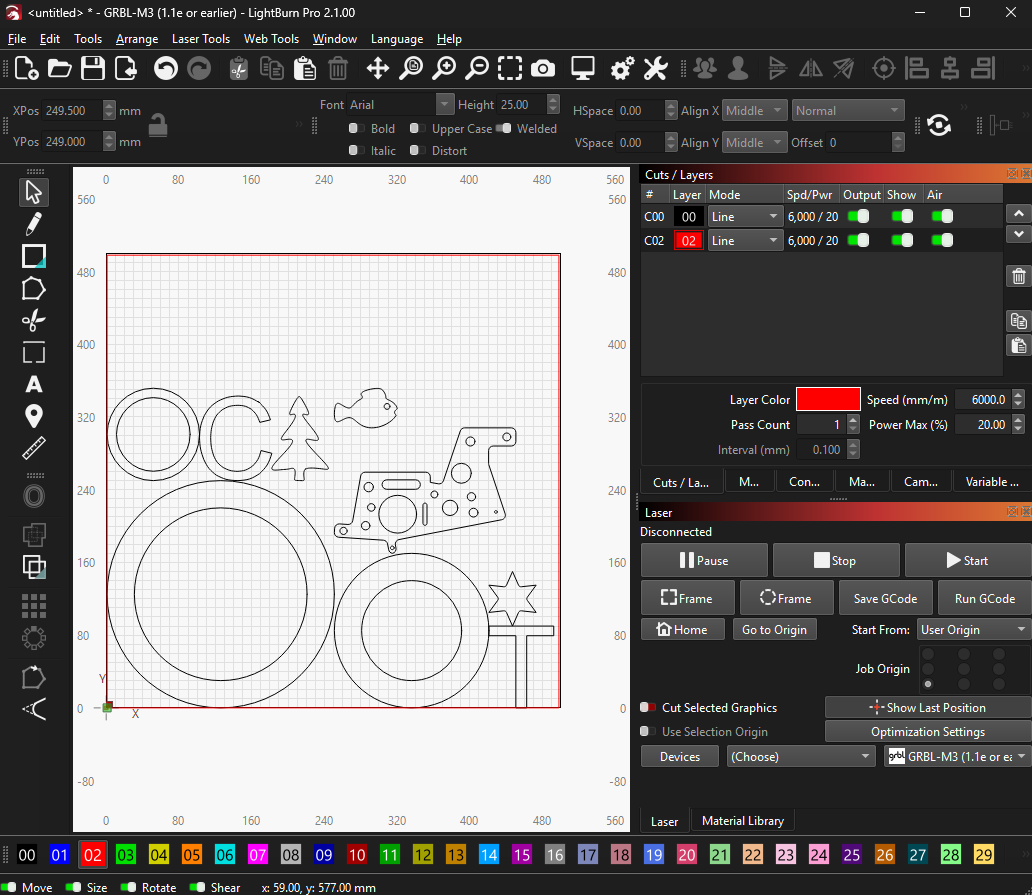
LightBurn is a powerful, graphics-editor-oriented environment. It is a strong fit when your process starts with drawing, interactive layout editing, and design adjustments inside the same tool.
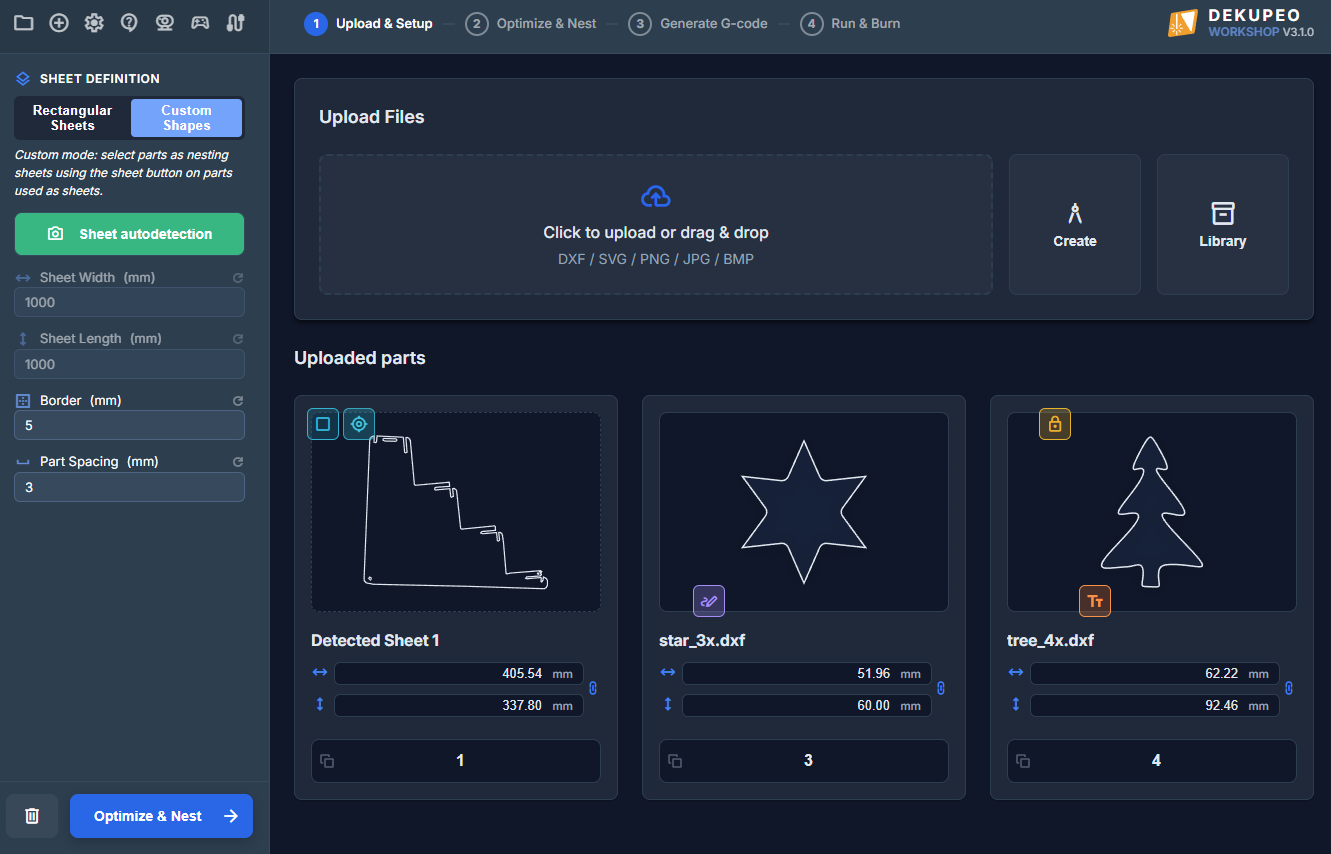
Dekupeo is workflow-based and production-oriented. It is well suited if you design your parts in another tool (CAD/graphics software). It mirrors a practical workshop sequence: define material size, upload parts, optimize nesting, generate G-code and run the machine. The focus is on fast job preparation, repeatability, and minimizing material waste.
Quick Summary
- Choose LightBurn if your main priority is integrated design editing and manual visual control in an editor-first workflow.
- Choose Dekupeo if your main priority is operational flow, nesting efficiency, and a step-by-step process that reflects day-to-day production.
Getting started also differs: LightBurn offers a trial period, while Dekupeo offers a Community licence for ongoing use with feature limits.
Capability Comparison
| Area | LightBurn | Dekupeo |
|---|---|---|
| Core Philosophy | Graphical design and job preparation in one interactive canvas. | Structured production flow: Upload & Setup -> Optimize & Nest -> Generate -> Run. |
| Learning Curve | Great flexibility, but can require understanding of editor concepts, layers, and design setup. | Guided, step-based process designed to be clear for workshop tasks. |
| Getting Started / Licensing | Trial period available for evaluation before purchase. | Community licence available for ongoing use, with advanced capabilities unlocked in higher plans. |
| Vector design | Integrated vector design tools for creating and editing shapes directly in the editor. | No direct editor, integrates parametric part generator. Primarily relies on external CAD/graphics tools for vector design, focusing on importing and optimizing existing designs. |
| Part import | Supports wide range of image and vector file formats. Parts are placed on origin and require manual grouping. | Easy mass import of raster and vector files. Supports projection of 3D STEP files with optional plugin. |
| Part Library | No integrated part import library. | Integrated BoM part import library with CSV import support. |
| Nesting | Quicknest - basic Bounding-box based nesting, external via SVGNest. | Advanced True-shape nesting, including quantity handling and advanced nesting controls. |
| Irregular Material / Offcuts | Usually handled through manual preparation and alignment workflow. | Supports custom sheet shapes and sheet autodetection from top-down photos (available from Workshop licence). |
| Autoengrave on Multiple Objects | Commonly done via manual setup and positioning workflow. | Autoengrave detects object position/orientation and applies engraving automatically (available from Workshop licence). |
| Machine Connectivity | Widely used with many controllers and connection setups incl. Ruida. | Serial, Wi-Fi, and Ethernet support, G-code based communication. |
| Gamepad support | No native support. | Native Gamepad Support for machine control. |
| CNC Router support | None in Lightburn, available separate SW package MillMage. | Supports 2D contour cutting with router (tool diameter, pass depth, Z-entry, safe/retract Z). |
| Multi-Machine Control (Laser Farm) | Single active machine per instance. Controlling multiple lasers simultaneously requires running multiple separate app windows or dedicated computers. | Fleet Mode Dashboard: Connect and stream video from multiple machines at once. Manage a local farm of lasers from a single unified interface (available from Business licence). |
| Best Fit | Shops and makers who want a design-centric environment and direct visual editing. | Shops and makers who want a production-centric system focused on clear workflow and throughput. |
How to Decide Quickly
- If your jobs start from design editing and frequent on-canvas changes, LightBurn is likely a better fit.
- If your jobs start from prepared part files and you optimize production repeatedly, Dekupeo is likely a better fit.
Practical recommendation: run the same 3-5 real jobs in both tools and compare total preparation time, material waste, and operator effort. That result is usually more valuable than any marketing checklist.
In the end you might want to have both tools available for different types of tasks.
Note: Comparison based on Lightburn 2.1.00 and Dekupeo 3.3.0 as available at the time of writing (June 2026).