2. Optimize & Nest
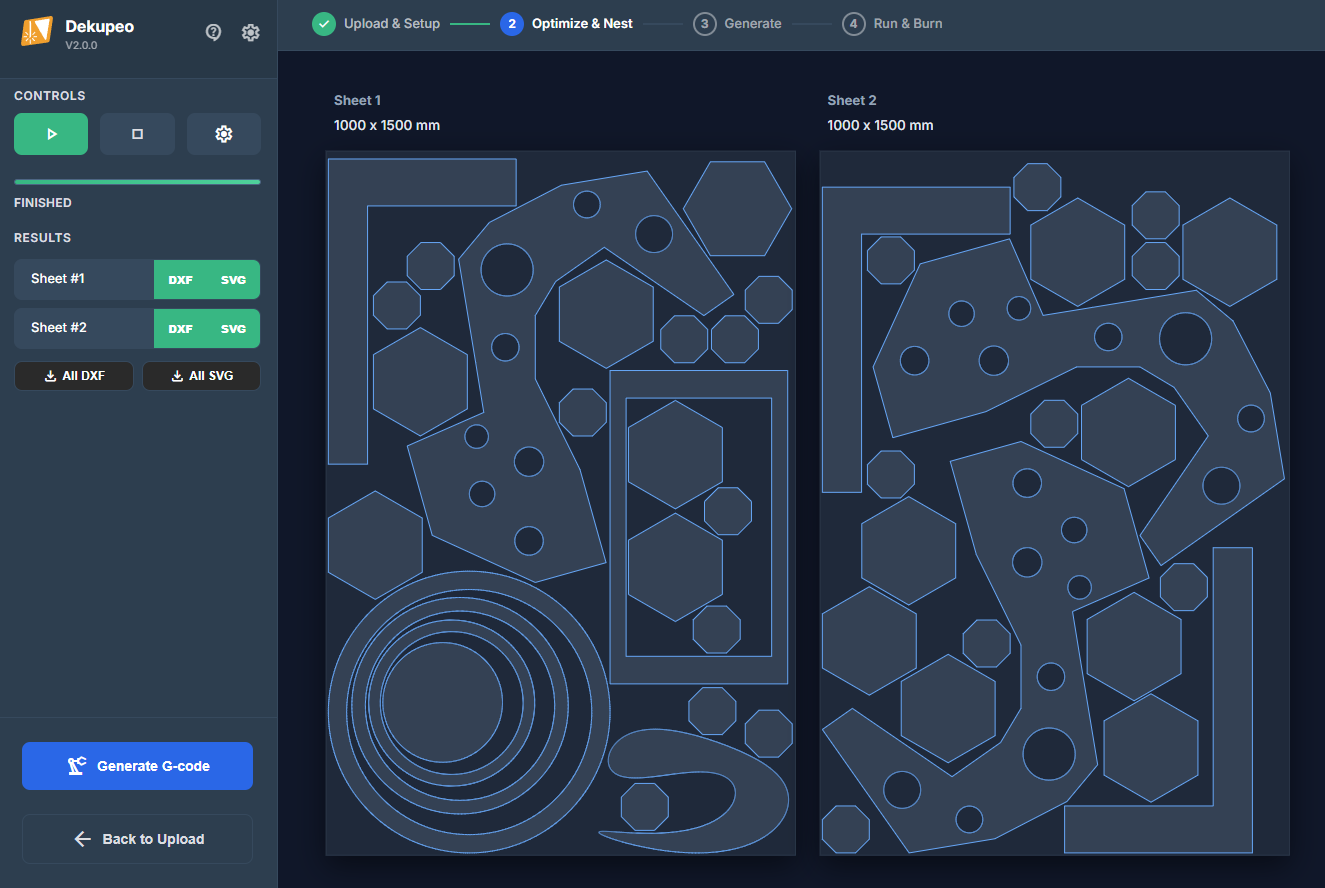
After uploading and setting up your parts, the parts are automatically placed onto sheets using the nesting algorithm to optimize material usage and minimize waste.
- Nesting is automatically started.
- You can manually start and stop nesting using the play and stop icons in the left panel.
- On the right side you see the nesting progress and real-time part placement. If multiple sheets are needed, they are added automatically.
- Once nesting is complete, you can review the results and export them as DXF files one by one or download results as a ZIP archive for all sheets.
- If needed, you can adjust nesting parameters via the settings icon and re-run nesting.
- You can move back and adjust part quantities or sheet settings as needed.
Nesting Algorithm Parameters
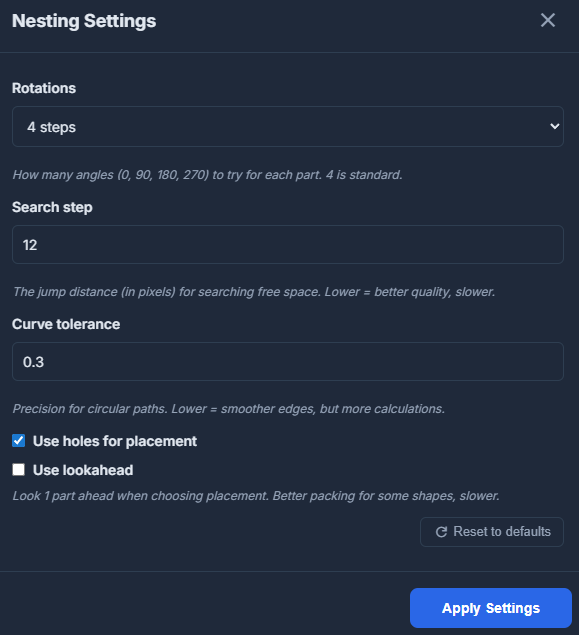
In the nesting settings, you can configure various parameters that affect how the nesting algorithm operates. Normally you do not need to adjust these, but you can achieve better results by fine-tuning them, especially for some specific part types. If you need to, you can reset them to default values.
Rotations
The nesting algorithm can rotate parts to fit them more efficiently onto the sheet. You can configure the allowed rotation angles in the nesting settings.
Search step
Search step is the distance that the algorithm moves parts when searching for optimal placement. Smaller values can lead to better nesting results but may increase nesting time, especially for larger sheets and smaller parts. On the other hand, if the algorithm skips good placements, you might need to decrease the search step.
Curve Tolerance
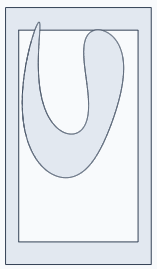
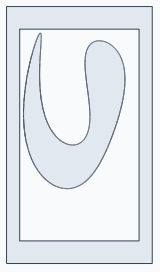
The nesting algorithm approximates parts for placement based on the curve tolerance setting. Higher tolerance values result in less precise placement, while lower values ensure more accurate placement, especially for complex sharp shapes.
Use Holes For Placement (Part-in-Part Nesting)
Lookahead
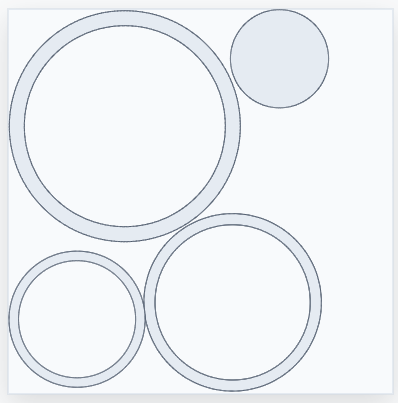
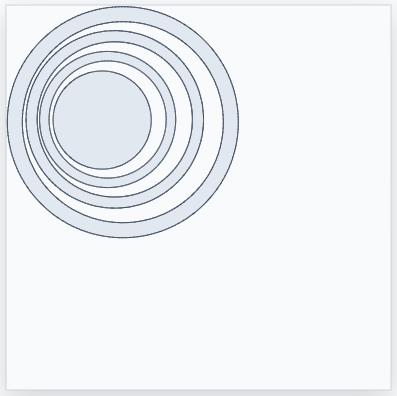
Sometimes, it can happen that optimal placement of one part blocks the placement of another part. Lookahead is a feature that allows the nesting algorithm to consider future placements when optimizing the current placement of parts. It slows down the nesting process but can lead to more efficient results for certain part shapes.