Dekupeo Tutorials
From 3D CAD to Laser: Importing STEP and Mesh Files Automatically
3D CAD has become the de facto standard for design, even when manufacturing flat-pack furniture, sheet metal enclosures, or multi-layered laser-cut assemblies. However, getting flat 2D profiles out of a 3D environment like Autodesk Fusion 360 can be a tedious process. You need to create a sketch on each part containing the cut profile and export it as a DXF file. OK for a few parts, but it's just too many clicks for larger assemblies.
With Dekupeo you can import 3D files directly, which saves you some clicks. The software projects the 3D part along its X, Y, and Z axes and automatically isolates the largest planar profile, instantly turning 3D solids into clean, laser-ready vectors.
Supported 3D Formats & How They Work
Common formats for 3D parts are STEP and mesh files (3MF & STL).
- STEP Files: is a universal 3D CAD data exchange format. It represent the 3D geometry with high precision using mathematical formulas to define surfaces and edges.
- Mesh Files (3MF & STL): Represent surfaces aproximately as a mesh of triangles. 3MF is a more modern format with proper unit handling, while STL is an older format that can be used as long as the export scale is correct. If you have experience with 3D printing, this is the data format used for 3D slicers.
Dekupeo can import mesh files directly, while STEP files require an optional free plugin. The software projects the 3D geometry along the X, Y, and Z axes, evaluates the bounding box, and automatically isolates the largest planar profile to create a 2D cut layer. This process is fully automated and works well for most sheet-style parts.
If your design includes weirdly oriented axes, complex 3D features, counter-sunks or non-through holes, always review the imported geometry to ensure it matches your expectations before cutting. If not, we recommend using 2D exports from your CAD software, which will always be accurate.
Exporting Data from Fusion 360 for Laser Cutting
Fusion 360 offers multiple ways to export your designs for laser cutting. We recommend using 3MF format, because it is very easy to export and works well with Dekupeo.
DXF export
To export your part as a DXF file, create a sketch on the desired face of your component. It will contain the 2D profile of that face. Then right-click the sketch in the browser tree and select Export DXF.
Do not use File > Export > DXF, as it may result in incorrect scaling.
Do not use your construction sketches for export, as they may contain extra geometry that you don't want to cut. Always create a dedicated sketch for export and make sure it contains only the geometry you want to cut.
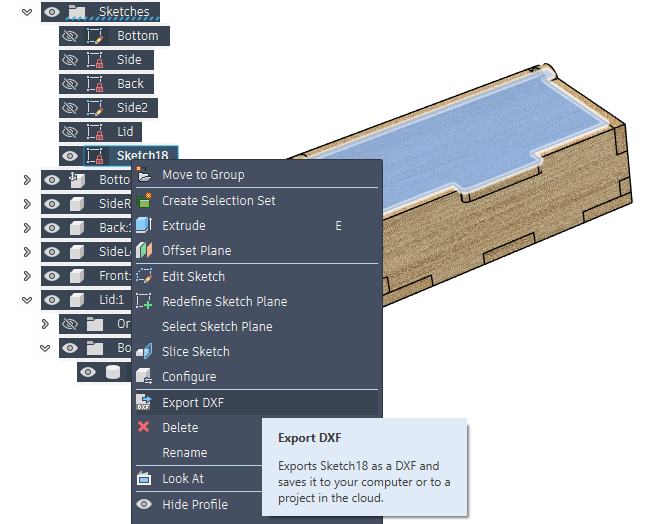
STEP export
STEP files export works only on component level, not on bodies. Right-click your component in the browser tree and select Export.... Choose STEP file export type.
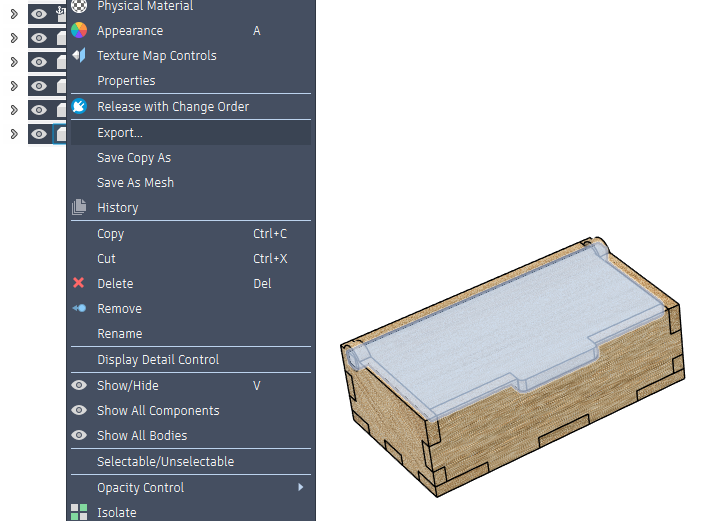
Mesh export (3MF & STL)
Mesh files can be exported from Fusion 360 by right-clicking the body or component, selecting Save as Mesh, and choosing either 3MF (preferred for reliable millimeter scaling) or STL.
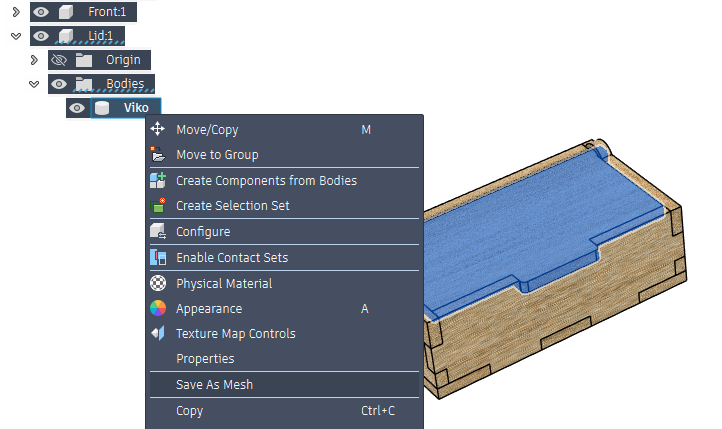
Exporting Data from Onshape
In Onshape, DXF export is easier than in Fusion 360, so it is recommended for quick 2D exports. You can export STEP or mesh files as well, but it does not make much sense here thanks to the straightforward DXF export.
DXF export
To export your part as a DXF file, just right-click the desired face and select Export as DXF/DWG.
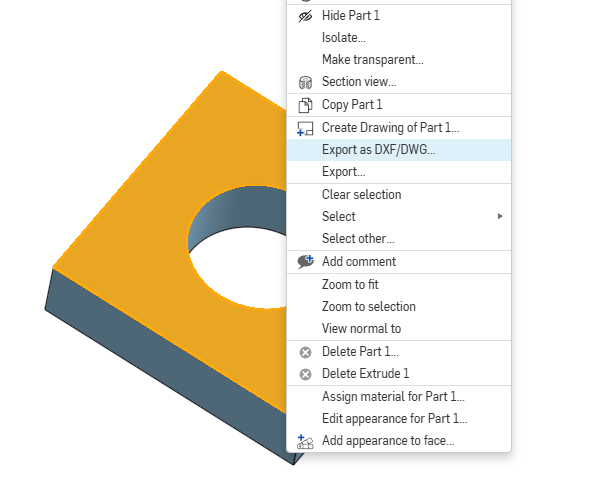
Importing 3D Files into Dekupeo
Importing 3D files into Dekupeo is as easy as importing 2D files (SVG, DXF, etc.). Simply drag and drop your 3D files into the workspace or select them via the file dialog and Dekupeo will handle the rest. It will decode the file format, flatten the geometry and convert it into a 2D vector data for cutting. Once imported, your 3D parts behave exactly like native 2D vectors.
You can select multiple files at once for mass-import. For importing STEP files, you will need to install STEP file plugin via the app settings/plugins menu. Parsing of STEP files is a bit slower than of mesh files.