Dekupeo Tutorials
Setting up a New Laser Cutter
In this tutorial, we will guide you through the process of setting up a new laser cutter with Dekupeo software. You do not need to do it, but doing it is recommended to get SW and machine parameters aligned.
Machine Profile
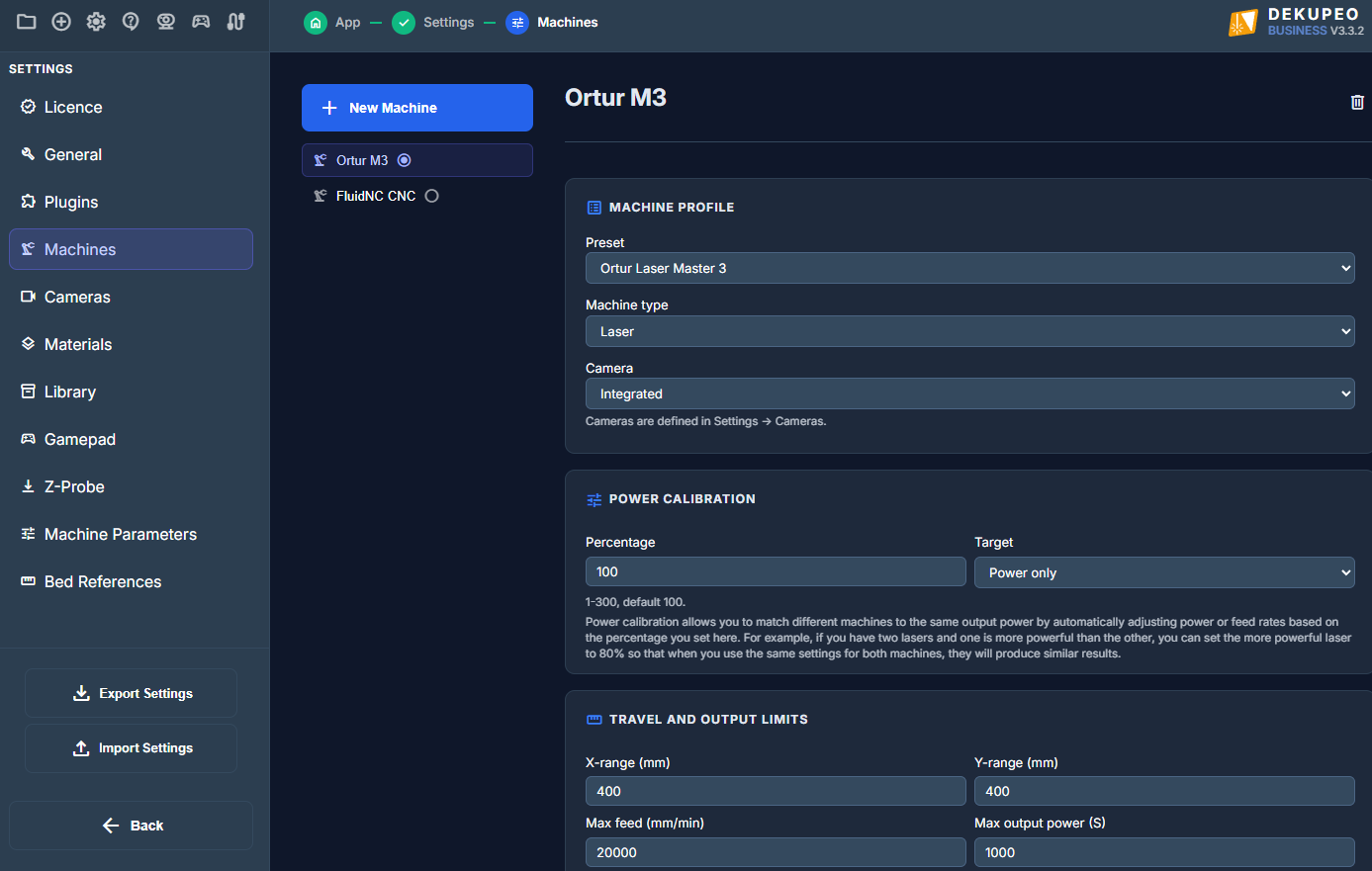
Go to Settings > Machines and click New Machine. Fill the name of your machine. In the Machine Profile section, you can select a machine preset. By selecting a preset, the software will automatically configure the machine parameters for you. If you do not find your machine, don't worry you can manually configure the parameters.Set machine type to laser. Router and rotary engraver will be covered in separate tutorials.
You can also configure a camera for the machine in Settings > Cameras and select it here.
Power Calibration
Keep percentage 100 and target Power only for now. The power calibration allows you to match performance of multiple laser cutters. In this tutorial, we will focus on a single machine setup.
Travel and Output Limits
Travel limits are the most important parameters. They are given by the size of your laser machine and shall be available in the machine documentation. Dekupeo needs to know these limits to check the starting position and ensure that your cutting job fits within your laser bed.
Max feed can be also filled in from the machine documentation to limit the speed SW can output.
Max output power (S) is the value used in G-code to set laser to 100% power. Keep it set to 1000 for most standard machines.
Connection
You can set preferred connection settings for your laser, but you can also change it later in the connection dialog.
Once you filled all the fields, click "Set as Active Machine" and "Save Machines Settings".
Test Connection
Click the Connect button () in top menu, find your machine and click Connect. If the connection is successful, you will see a confirmation message and you can close the connection dialog.
Return to the app from Settings (via Back btn in bottom part of left menu) and go to Run & Burn. Machine controls should be active and you should be able to home and move the laser head.
Troubleshooting Connection
If you have problems connecting to your machine, check the following:
- Machine is powered on.
- Communication cable is properly connected.
- If using Wi-Fi or Ethernet, ensure that the machine is connected to the same network as your computer and that the network settings are correct.
- Restart the machine and try again.
You can continue with Material Setup tutorial.