Dekupeo Case Studies
Nesting DXF files with layers for 2.5D Machining
In this case study, we will demonstrate how to use Dekupeo layered DXF nesting for 2.5D machining.
What is 2.5D Milling?
2.5D milling is a type of machining where the cutting tool moves only with two axes at a time - in the X and Y axes while the Z axis is used for stepwise depth control. With 2.5D milling you can cut, drill, and create pockets in a workpiece, but you do not have full 3D movement for creating slopes.
Data files for 2.5D milling are simpler and easier to generate compared to full 3D models. It can be represented using layered DXF or SVG files where each layer corresponds to a specific depth in the workpiece.
Most milling of flat stock is typically 2.5D. The material is cut, some pockets are created and holes are drilled, all without full 3D movement. Typical example would be manufacturing of cabinet doors from flat wooden panels where you need to cut the door shape, mill pockets for hinges, drill partial holes for hinge fixation and through holes for handles.
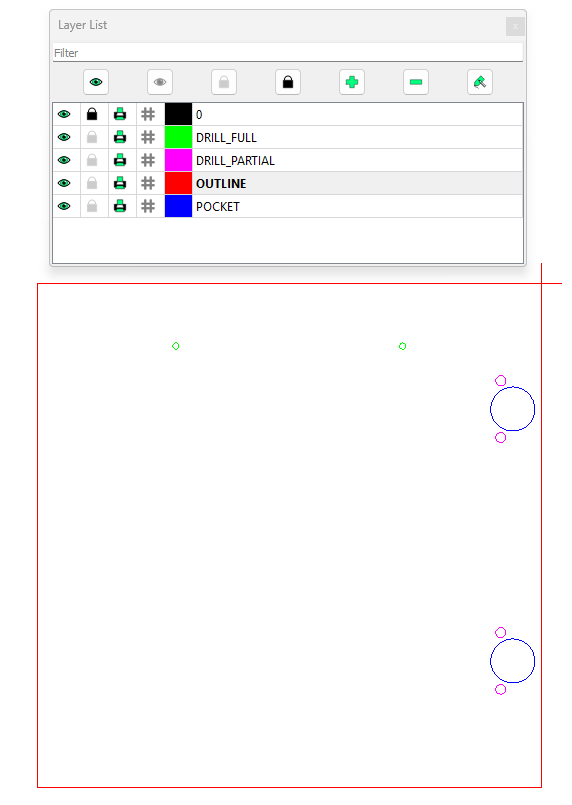
Nesting Layered DXF Files
Nesting software allows you to arrange multiple parts on the sheet of material automatically and optimize material usage. Unfortunately, not all nesting software supports DXF and SVG files with layers. For example, freely available Deepnest can import DXF with layers, but everything is flattened into a single layer in output.
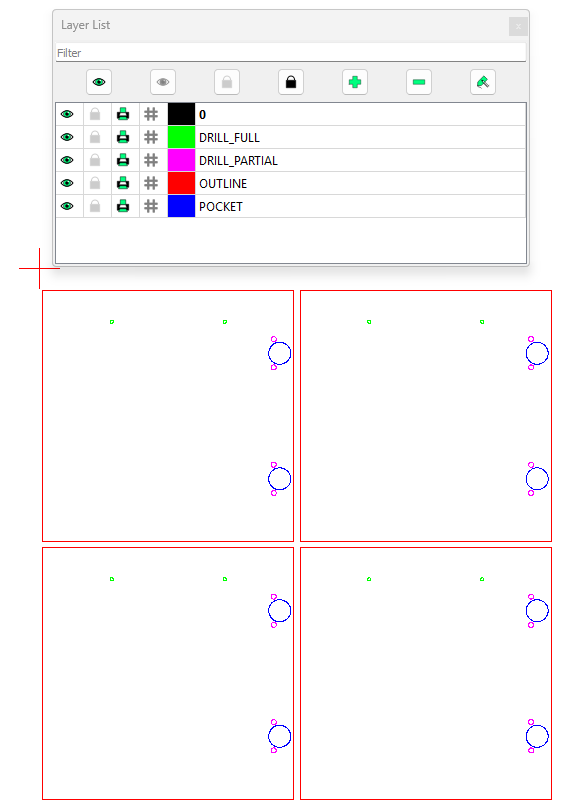
With Dekupeo, you can nest layered DXF and SVG files while preserving the layers. Features in the nesting output will be on the same layers as on the input. With the layer information preserved, you can use the nesting result from Dekupeo directly in your 2.5D machining workflow.
2.5D Machining with Dekupeo Nesting
- Prepare DXF or SVG files with layers corresponding to different depths in the workpiece in your favorite CAD software.
- Mass-import layered DXF or SVG files into Dekupeo.
- Run advanced-true shape nesting on desired material sheet size.
- Export the nesting result as a layered DXF or SVG file. Features are in the same layers as in input files.
- Process the nested layered layout in your CAM software.
Note: Custom layer preservation in nesting output works from Dekupeo 3.4.1.